

Conversion intelligence ensures that the conversations you have are linked to the appropriate contact in your CRM system (Dynamics 365 Sales). Key action points from the transcript are automatically logged in CRM, eliminating the need for manual entry. On top of that, you gain insights into customer sentiment and the conversational style of the salesperson.
For a sales-driven organization, the question isn’t whether this is useful but rather how to make it available for their business. In this blog, I outline the two steps you need to follow to enable this powerful functionality.
Step 1: Enable Outbound Calling
The first step is ensuring that you can make calls directly from Dynamics 365 Sales. There are two ways to achieve this:
- Calling via Teams
- Calling via a third-party telephony system
For this blog, we assume you’ll use Teams for calling. This requires meeting three prerequisites:
- Install the Microsoft Teams Phone System and ensure you have a valid license.
- Have a license to use Microsoft Teams.
- Activate and configure the Teams dialer.
The initial step is setting up Teams Phone within your organization. Explaining this in detail would go beyond the scope of this blog, partly because it’s technical and partly because Microsoft has already provided extensive documentation here: Setting up your Phone System.
A Teams license is already a given for many organizations.
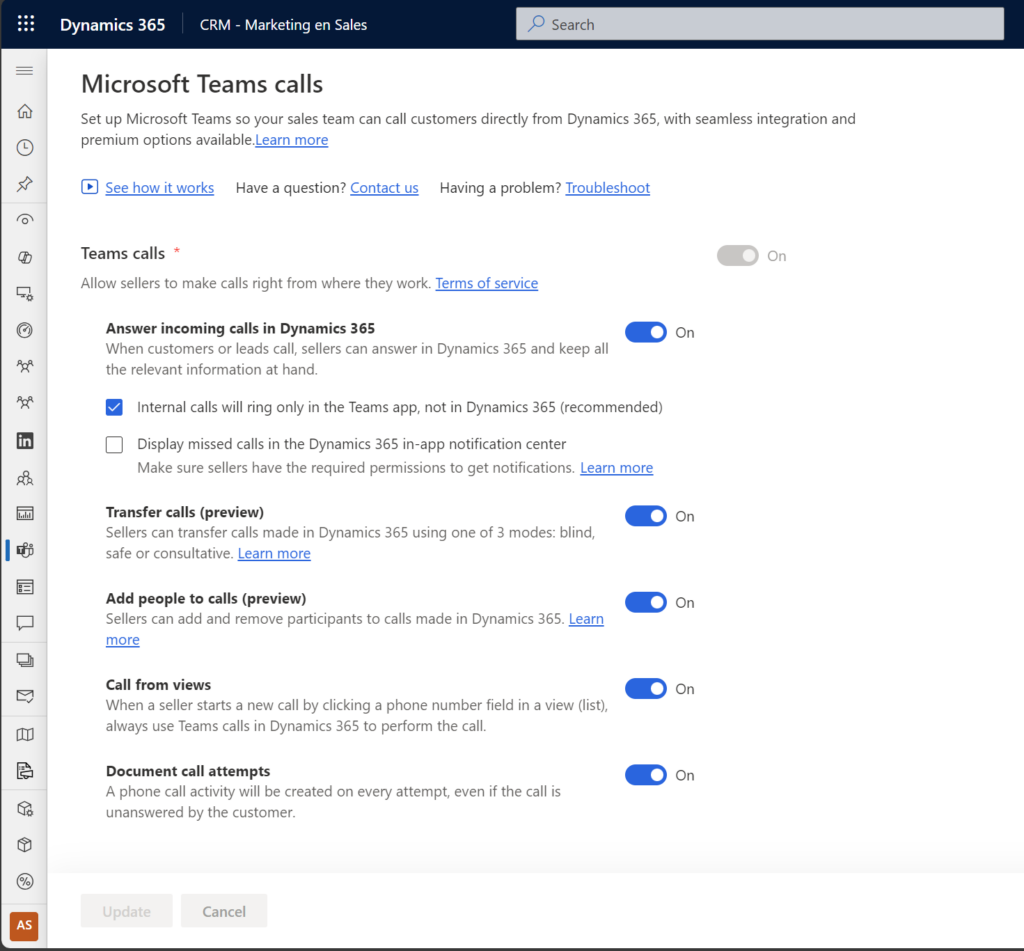
Finally, you need to configure a few settings within Dynamics 365 Sales to enable calling directly from your CRM system. Microsoft has documented this process here: Configure Microsoft Teams Dialer.
Once you’ve set up calling via Teams from your CRM, you can leverage several handy features, such as:
- Answering incoming calls directly from Dynamics 365 Sales.
- Viewing missed calls in Dynamics 365 Sales.
- Forwarding calls to colleagues.
- Adding colleagues to a call.
Clicking a phone number in your CRM to initiate a call directly.
Step 2: Set Up Conversion Intelligence
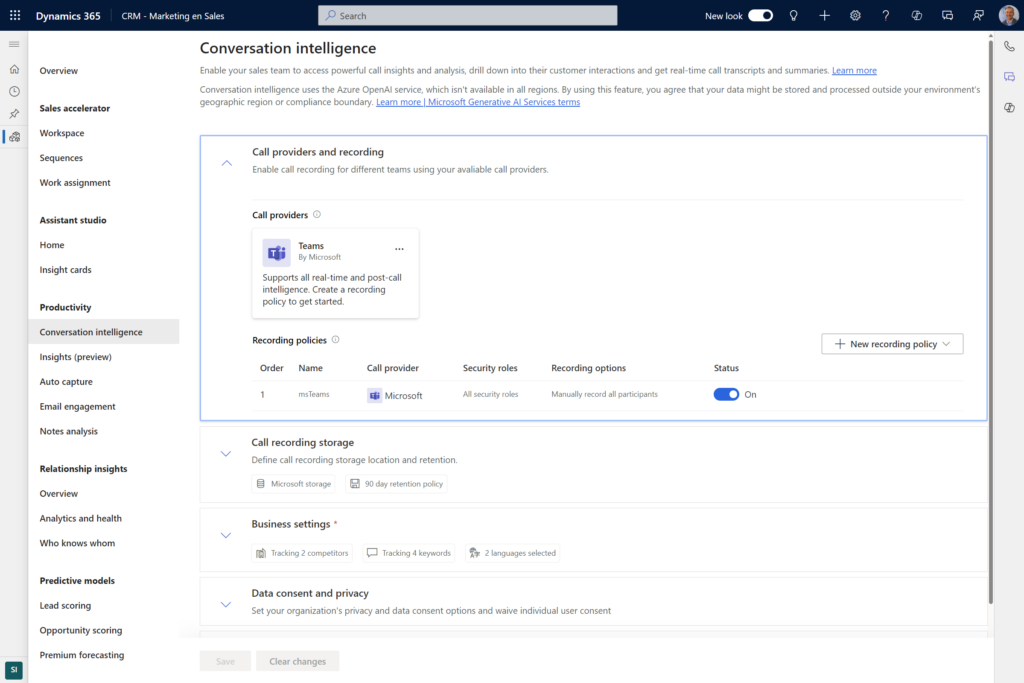
The next step is enabling the conversion intelligence features in Dynamics 365 Sales. Start by adding a “call provider” in CRM, specifying that Teams is used for calls.
You can configure how conversations are recorded:
- Manually start recording, including all participants.
- Manually start recording for the customer, while the salesperson is automatically recorded.
- Automatically record all participants.
- Automatically record all participants, with the option to stop recording.
Recorded conversations need to be stored somewhere. The simplest option is to use Microsoft’s storage solution. With this, you can retain conversations for up to 90 days (or choose a shorter period, such as 30 days).
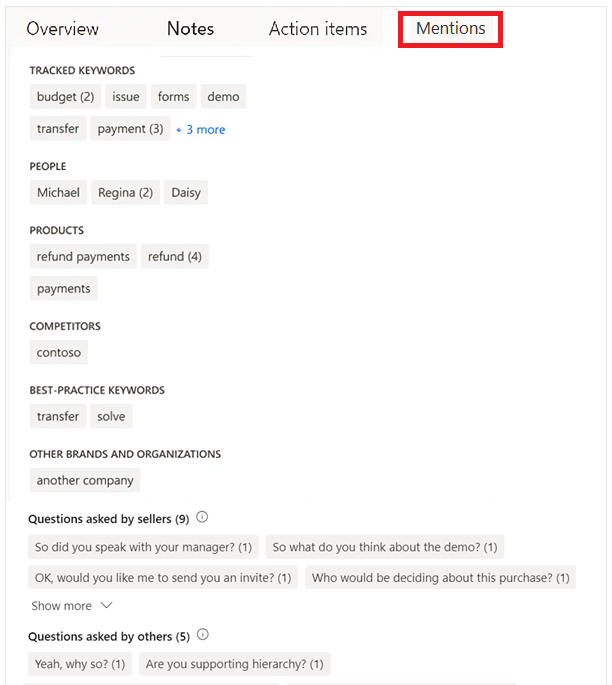
You can define specific keywords (e.g., “budget,” “price,” “contract”) and indicate that the system should monitor mentions of competitors during the conversations.
Key Features and Benefits
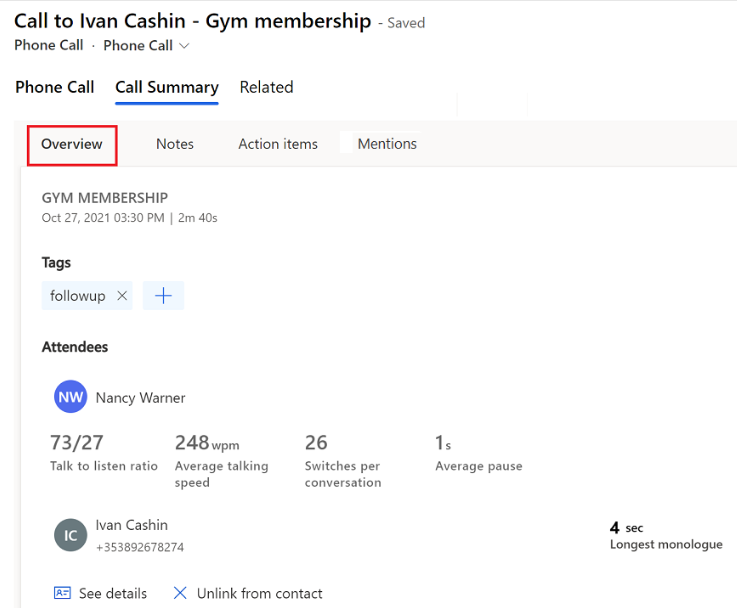
One of the most valuable features is automatically generating a call summary in Dynamics 365 Sales. The salesperson receives a factual overview of the conversation, including:
- Call duration.
- Participants.
- Speaking time distribution.
- Conversation speed.
The longest monologue by the customer.
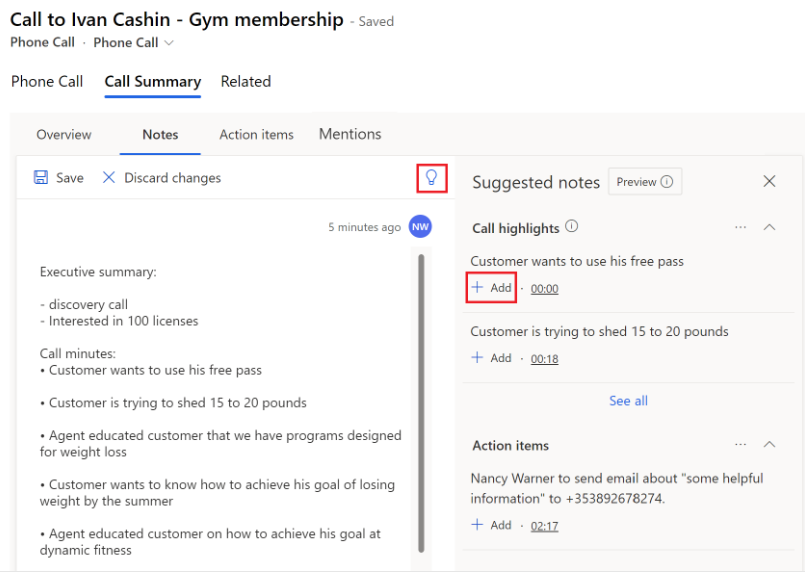
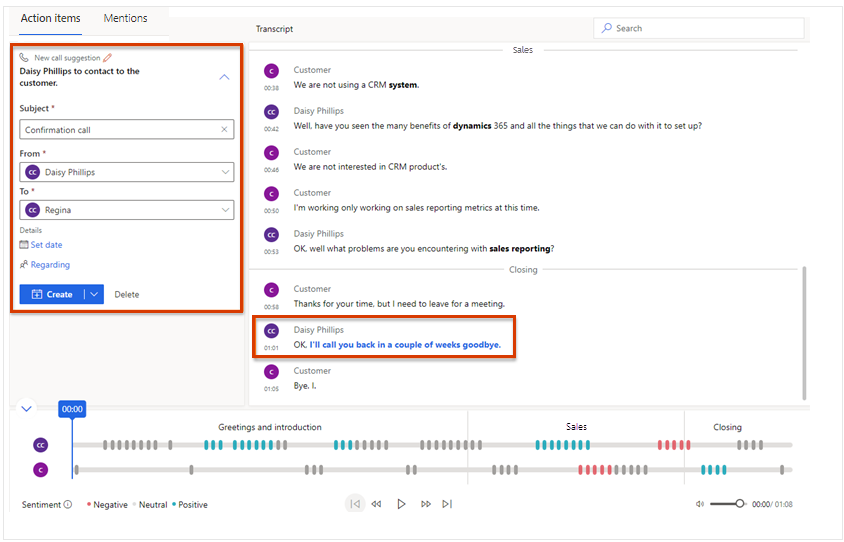
From the transcript, notes are automatically suggested and converted into readable summaries. Actions detected from these notes can be added to the CRM system with minimal effort, ensuring follow-up.
Why Use Conversion Intelligence?
This functionality is a powerful tool for sales professionals looking to save time and effort in managing their customer interactions. Instead of manually taking notes and logging actions, they can focus entirely on having meaningful conversations and building relationships.
The automatic call summary provides an overview of key points, such as customer needs, desires, pain points, emotions, and expected next steps.
It’s a fantastic way to elevate your sales performance and productivity.

